
AI CODING WORKSPACE FOR LOCAL PROJECTS AND VS CODE

OrvixCode

Work directly with your codebase. Inspect projects, fix errors, edit files with AI, and apply changes while staying in control.

The desktop app and Visual Studio Code extension come together in one OrvixCode experience. Works with Viona and other AI providers you enable.

Windows 10 & 11 • 64-bit • OrvixCode 1.2.0 • VS Code integration included

Use OrvixCode your way:
Code generation
AI chat
Local project
GitHub
VS Code
Agent
Multi-model

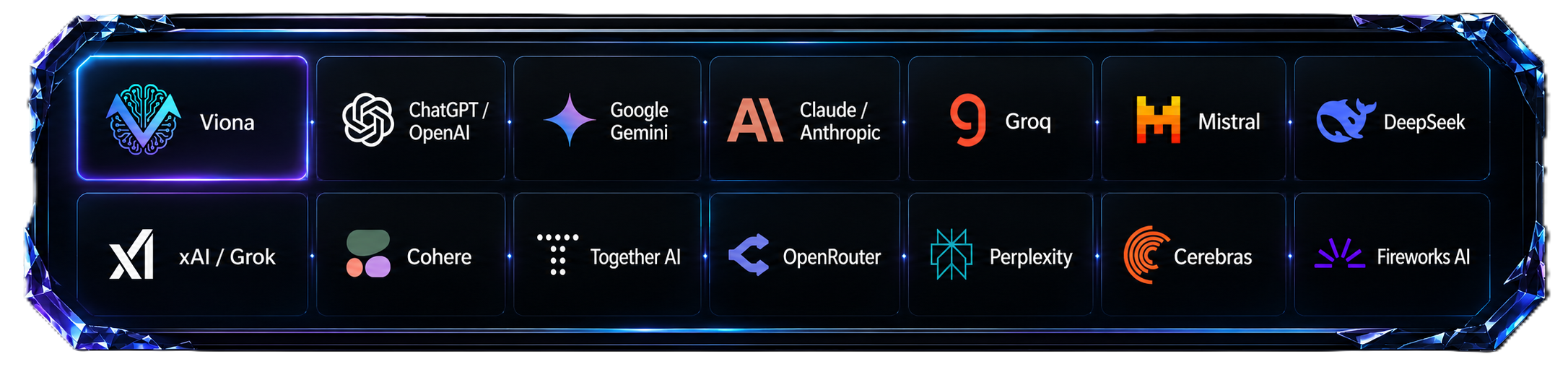
WORKS WITH

OrvixCode; Viona, OpenAI, Gemini, Anthropic, Groq ve Mistral ile birlikte çalışır

Models from enabled services appear in one simple selector. API keys are stored encrypted on your device.

LOCAL AI MODELS

Models on your computer.
You stay in control.

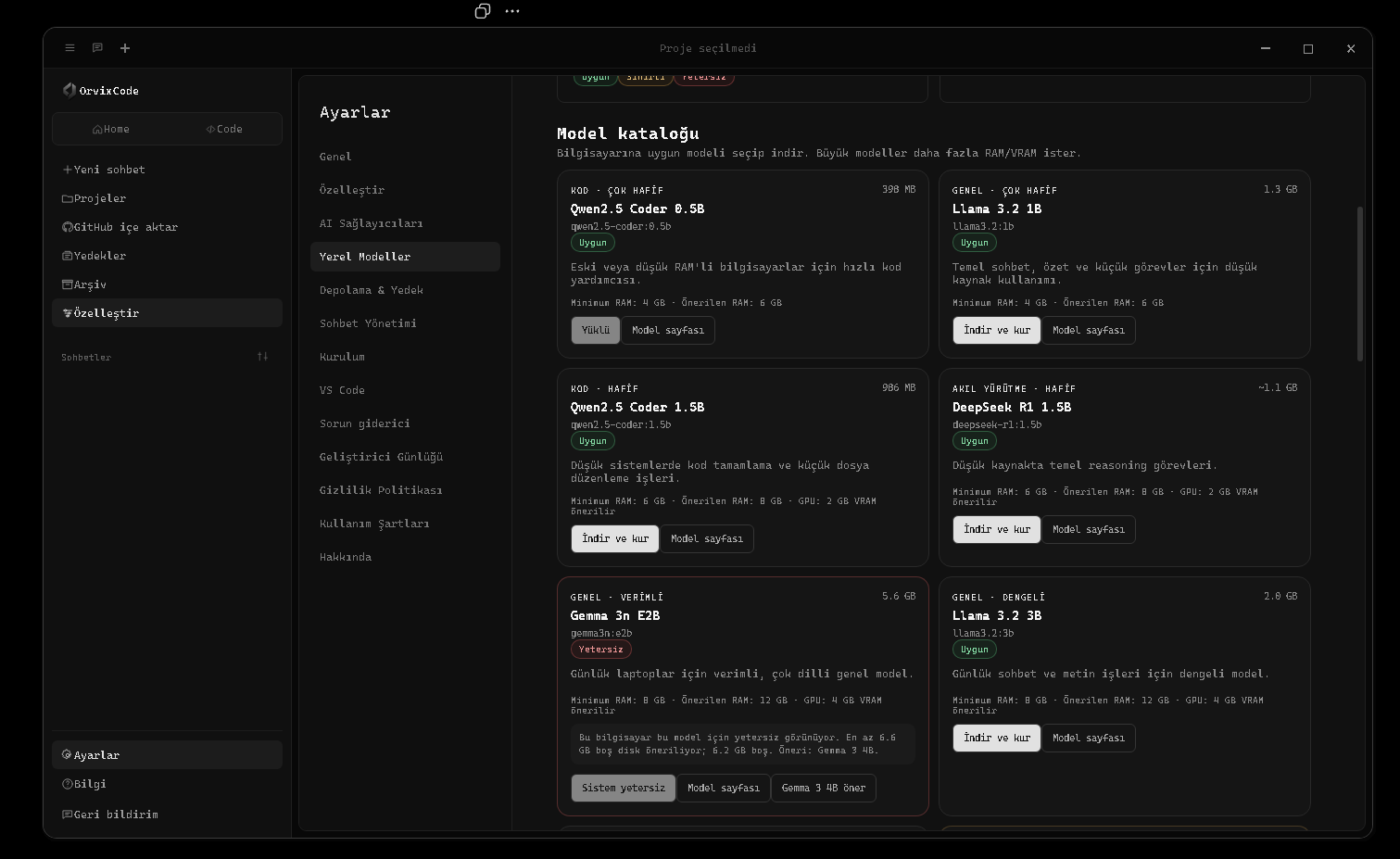
OrvixCode helps you run supported local AI models directly on your computer through Ollama. After a model is downloaded, supported chat and coding tasks are processed through the local Ollama service; local use does not require a separate cloud AI API key.

  • Model compatibility checks based on RAM, VRAM, and available disk space
  • Use local models in Ask, Edit, Agent, and Combo workflows
  • Download and manage models, then switch quickly between installed models
  • Hardware-aware context usage for long-code and project tasks
  • Model licenses and usage terms are defined by their respective third-party publishers
Learn more about local models →
OrvixCode Local Models screen and Ollama model catalog

AI that understands your project,
can make changes,
and keeps you in control.

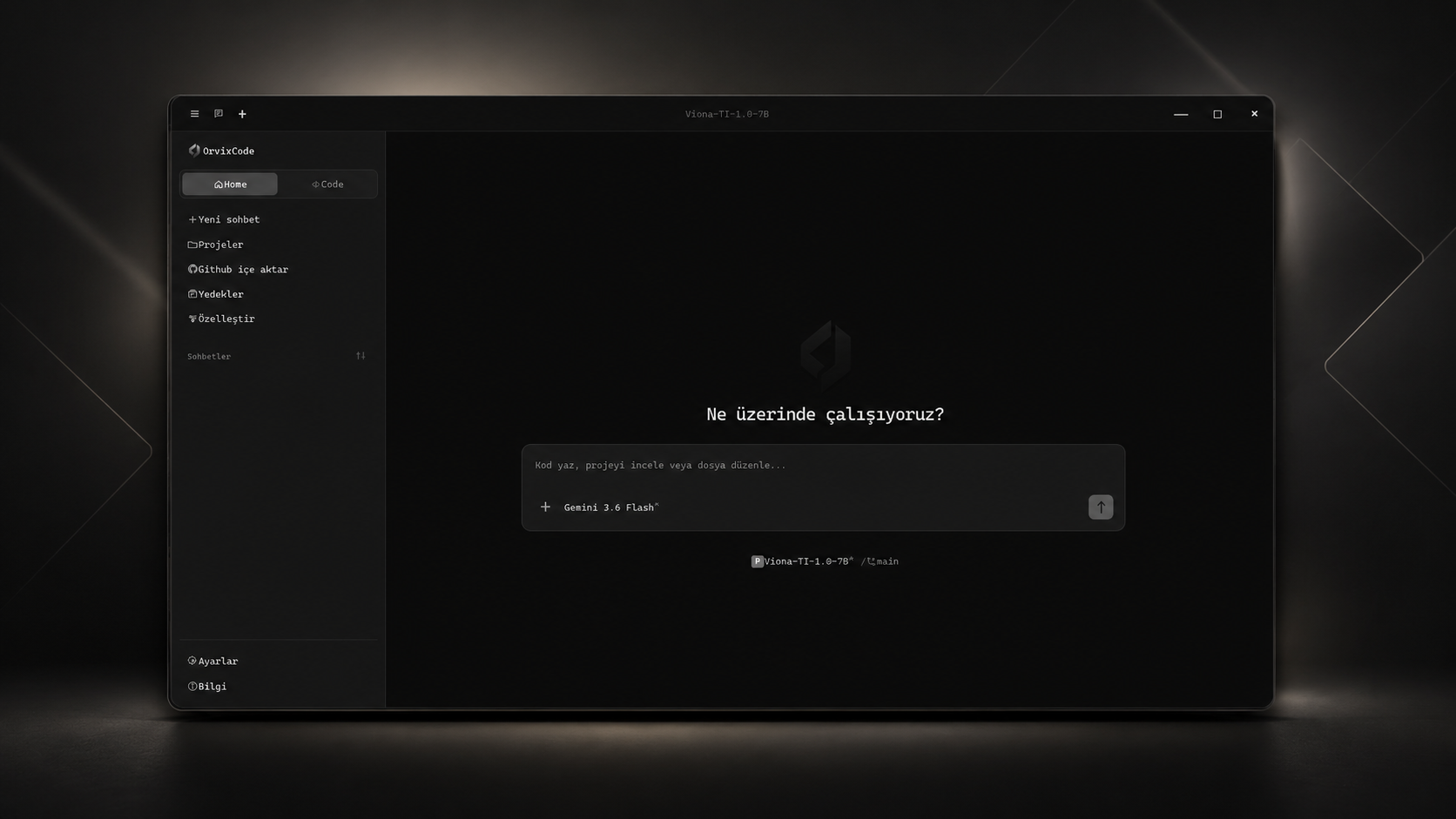
OrvixCode does more than generate code. It understands your project structure and relevant files, analyzes requests with Ask, Edit, and Agent modes, and prepares directly applicable file changes when needed.

01

Connect your project.
Let OrvixCode build the context.

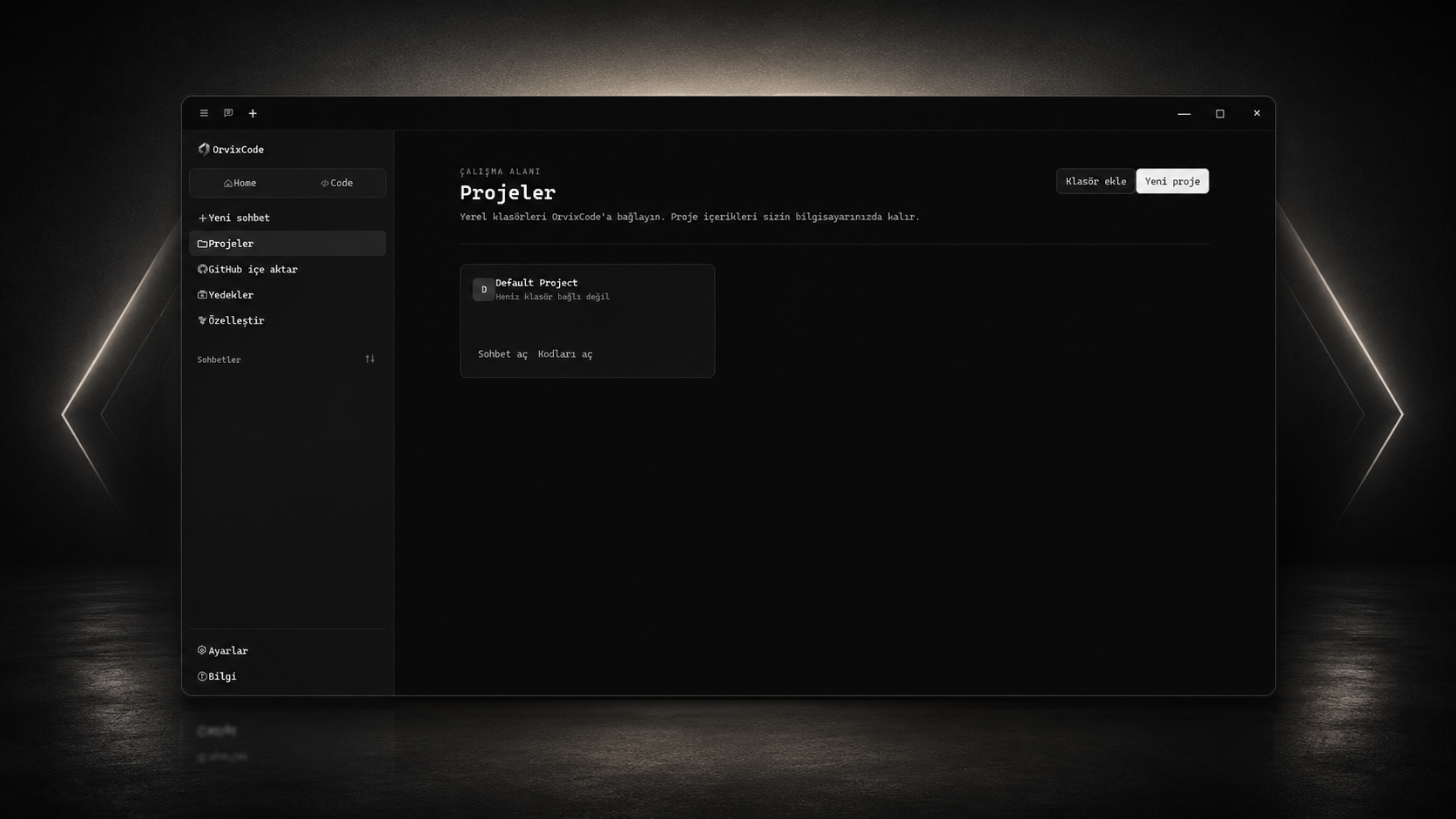
Add an existing folder, create a workspace, or import a GitHub repository. Your files stay on your computer.

  • Local folder management
  • Smart file context
  • GitHub import
OrvixCode projeler ekranı
02

Ask, Edit, and Agent.
Work the way you need.

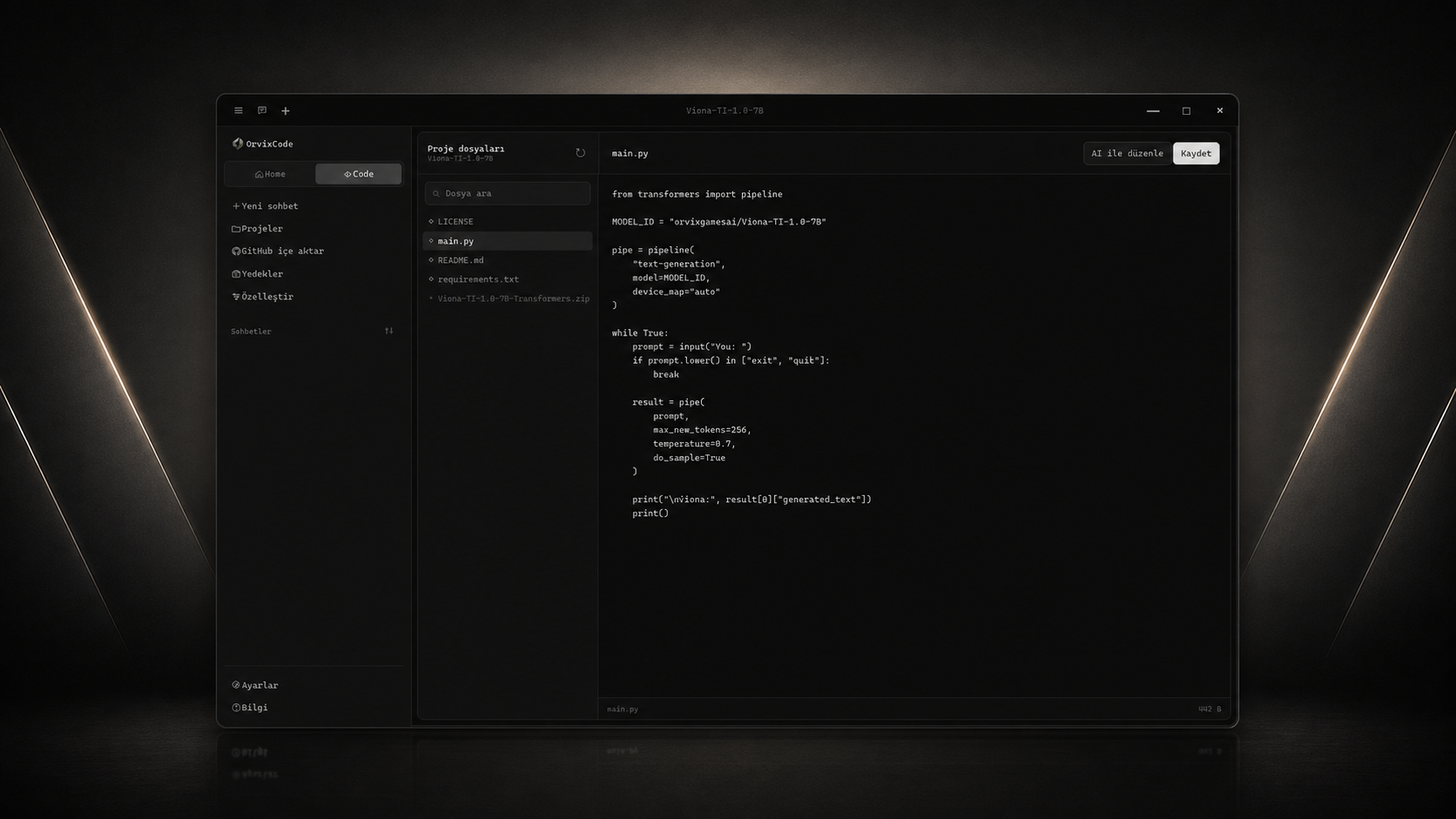
Ask a question, edit the active file, or run multi-file tasks with Agent mode. Even in Ask mode, OrvixCode can prepare an applicable edit package when you request changes.

  • Ask — questions, explanations, and code review
  • Edit — direct changes to the active file
  • Agent — multi-file and project tasks
  • Diff, Apply, and Undo flow
OrvixCode kod editörü

OrvixCode is now
inside your editor.

Open the OrvixCode extension from the VS Code Activity Bar. Chat, explain selected code, fix errors, refactor, or apply AI-prepared changes directly in the editor.

01 · CHAT

AI chat inside VS Code.

Use active-file, selected-code, and workspace context. Model and connection status are visible in the panel.

AskModel selection
02 · EDITING

Select code, right-click.

Send selected code to OrvixCode with Explain, Fix, or Refactor commands and apply the result to the editor.

FixRefactorExplain
03 · AGENT

Multi-file tasks.

Agent mode works with project context; it can edit multiple files and create new files when needed.

AgentMulti-file
04 · CONTROL

Diff, Apply, and Undo.

Review and apply AI changes, or undo the latest AI edit. Applied package state is preserved.

DiffApplyUndo
05 · SYNC

Chat history on desktop.

VS Code chat and edit history can be synchronized with the OrvixCode desktop app.

VS Code · ChatSync
06 · BRIDGE

Lightweight background connection.

VS Code integration runs through a separate OrvixCode Bridge, allowing AI tasks without opening the desktop interface.

Headless BridgeConnection test
Fix the bug in this function and simplify the code.
I reviewed the active file and selected code. The change package that fixes the issue is ready.
function saveProject(data) {
  if (!data) return false;
  return persist(data);
}
Ask OrvixCode something or request a code change...
Ask   Edit   AgentConnected · viona-ti-3.0

See every change. Stay in control.

OrvixCode handles edits through a visible workflow. Review and apply changes, and undo the latest AI edit when needed.

  1. 01AnalysisRelevant files and change scope are identified.
  2. 02PreviewAI changes and affected files are shown.
  3. 03ApplyApproved changes are written to the editor or project directory.
  4. 04UndoThe latest AI edit can be reverted when needed.
OrvixCode

Start on desktop.
Continue inside VS Code.

Download OrvixCode 1.2.0. Manage local projects with AI, install the Visual Studio Code integration, and use Ask, Edit, and Agent modes in the same workspace.

Download free for Windows

Yes. OrvixCode 1.2.0 includes an OrvixCode panel in the VS Code Activity Bar and right-click commands for selected code. You can use Ask, Edit, and Agent modes directly in VS Code.

Yes. AI-prepared changes can be applied to the VS Code editor with Diff, Apply, and Undo options.

With synchronization, VS Code chat and edit history can be transferred to OrvixCode desktop history.

No. Explicit approval is requested before each file change is applied.

Project files remain in your own folders. Only the context required for a task may be sent to the AI service you choose.

Alongside Viona, you can enable OpenAI, Gemini, Anthropic, Groq, and Mistral with your own keys. You can also run supported local models through Ollama on your computer without requiring a separate cloud AI API key for local use.