What you will learn + مختبر عملي
ORVIXCODE · FULL LEARNING SYSTEM
أكاديمية OrvixCode
Master OrvixCode from first launch to professional repository workflows. Learn by reading, practicing, testing and finishing real projects.
42الدروس
8المسارات
14+ساعات
0مكتمل
Academy Dashboard
0%Progress is stored locally in your browser. No account is required. Tip: press Ctrl/⌘ + K to search.
Overview
Inside this academy
Learn by doing
Follow the full curriculum or focus on the skill area you need today.
Use the lesson in a real OrvixCode workspace instead of only reading it.
Progress is stored locally in your browser. No account is required.
Finish the academy with larger projects that combine multiple OrvixCode skills.
Desktop · Mobile · RTL · Search · Local progress
Skill map
Choose a learning path
Follow the full curriculum or focus on the skill area you need today.
مبتدئ · 7 الدروس
01 · Foundations
Install OrvixCode, understand the interface and build a reliable first-project workflow.
متوسط · 6 الدروس
02 · AI Coding Workflow
Use Ask, Edit, Agent, the editor, terminal and undo flow without losing control of changes.
متوسط · 5 الدروس
03 · VS Code Integration
Bring OrvixCode into VS Code and learn selection, context, Agent and synchronization workflows.
متقدم · 7 الدروس
04 · Models & Context
Choose Viona, cloud providers, local models and Combo intelligently; manage context and long code.
متقدم · 5 الدروس
05 · Project Productivity
Work with GitHub, backups, sessions, settings and keyboard workflows on real repositories.
خبير · 4 الدروس
06 · Security & Control
Protect API keys, permissions and repository boundaries while keeping AI productive.
خبير · 5 الدروس
07 · Troubleshooting
Diagnose provider, VS Code, local-model and application failures using evidence instead of guesses.
متقدم · 3 الدروس
08 · Platform & Release Operations
Understand Learn, service status, releases and how the OrvixCode platform communicates changes.
لا توجد دروس مطابقة.
Level · مبتدئ
01 · Foundations
Install OrvixCode, understand the interface and build a reliable first-project workflow.
WorkspaceProjectsChat
1 نظرة عامةنظرة عامة — معلومات تقنية عن الاستخدام والإعداد وتدفقات العمل في OrvixCode.
نظرة عامة — معلومات تقنية عن الاستخدام والإعداد وتدفقات العمل في OrvixCode.
OrvixCode is a Windows desktop development environment that connects AI chat with real projects, files, editor workflows, and a built-in terminal.
You can open or create projects, analyze and edit code with AI, run multi-file project tasks, and choose between supported local or cloud models.
Core capabilities
- Planning and continuation for long-code and large-project tasks.
- Multi-file project generation with dependency-aware manifest validation.
- Syntax-highlighted code editor, Problems area, AI Fix, and inline AI editing.
- Built-in terminal with AI-assisted terminal error analysis.
- Automatic installation and retry for missing Python packages using the same interpreter.
- Explain, edit, and fix selected code.
- Customizable keyboard shortcuts, response stopping, and Markdown formatting while streaming.
- Local Ollama models, cloud providers, Combo Mode, and Visual Studio Code integration.
You stay in controlAI-prepared file changes retain preview, permission, apply, backup, and undo workflows.
What you will learn 01Workspace · نظرة عامة
What you will learn 02Projects · مختبر عملي
What you will learn 03التقدم · Diff · Test · Review
مختبر عملي
Use the lesson in a real OrvixCode workspace instead of only reading it.
1Open a small real project and identify where this lesson applies.
2Ask OrvixCode to explain the current state before making changes.
3Apply one controlled change and verify it with the project’s real checks.
Apply the “نظرة عامة” concept to this project. Inspect and explain the current state first. Do not touch unrelated files. Make the smallest safe change, run the relevant build/test/terminal verification, and summarize the real result.
2 متطلبات النظاممتطلبات النظام — معلومات تقنية عن الاستخدام والإعداد وتدفقات العمل في OrvixCode.
متطلبات النظام — معلومات تقنية عن الاستخدام والإعداد وتدفقات العمل في OrvixCode.
| Component | Requirement / recommendation |
|---|---|
| Operating system | Windows 10 or Windows 11 |
| Architecture | 64-bit |
| Internet | Required for cloud AI providers and downloading local models. Previously downloaded Ollama models can run locally without internet access. |
| RAM | The desktop app has modest requirements; local AI memory use depends heavily on model size and context length. |
| GPU / VRAM | Optional for local models, but a compatible GPU can significantly improve performance. |
| Disk | Allow space for the app, projects, backups, and downloaded local models. |
| VS Code | Only required if you use the VS Code integration. |
Local AI noteModel speed and compatibility depend on RAM, VRAM, GPU support, free disk space, and context size. Very large models may not fit on lower-memory systems.
What you will learn 01Workspace · متطلبات النظام
What you will learn 02Projects · مختبر عملي
What you will learn 03التقدم · Diff · Test · Review
مختبر عملي
Use the lesson in a real OrvixCode workspace instead of only reading it.
1Open a small real project and identify where this lesson applies.
2Ask OrvixCode to explain the current state before making changes.
3Apply one controlled change and verify it with the project’s real checks.
Apply the “متطلبات النظام” concept to this project. Inspect and explain the current state first. Do not touch unrelated files. Make the smallest safe change, run the relevant build/test/terminal verification, and summarize the real result.
3 التثبيتالتثبيت — معلومات تقنية عن الاستخدام والإعداد وتدفقات العمل في OrvixCode.
التثبيت — معلومات تقنية عن الاستخدام والإعداد وتدفقات العمل في OrvixCode.
Download the current Windows installer from the official OrvixCode product page.
https://orvixcode.orvixgames.com/download.php?lang=ar
- Download the installerOpen the OrvixCode product page and download the current Windows build.
- Run SetupIf Windows shows a security prompt, verify the source before continuing.
- Choose the install locationKeep the default path or select another supported location.
- Enable VS Code integrationIf Setup offers to install or update the extension, keep the option enabled if you use VS Code.
- Finish installationLaunch OrvixCode from the desktop shortcut or Start menu.
What you will learn 01Workspace · التثبيت
What you will learn 02Projects · مختبر عملي
What you will learn 03التقدم · Diff · Test · Review
مختبر عملي
Use the lesson in a real OrvixCode workspace instead of only reading it.
1Open a small real project and identify where this lesson applies.
2Ask OrvixCode to explain the current state before making changes.
3Apply one controlled change and verify it with the project’s real checks.
Apply the “التثبيت” concept to this project. Inspect and explain the current state first. Do not touch unrelated files. Make the smallest safe change, run the relevant build/test/terminal verification, and summarize the real result.
4 التشغيل الأولالتشغيل الأول — معلومات تقنية عن الاستخدام والإعداد وتدفقات العمل في OrvixCode.
التشغيل الأول — معلومات تقنية عن الاستخدام والإعداد وتدفقات العمل في OrvixCode.
On first launch, OrvixCode may show setup preferences such as application language, workspace location, and basic behavior.
After setup, the main workspace lets you add a project, start a new chat, or configure AI providers and local models.
What you will learn 01Workspace · التشغيل الأول
What you will learn 02Projects · مختبر عملي
What you will learn 03التقدم · Diff · Test · Review
مختبر عملي
Use the lesson in a real OrvixCode workspace instead of only reading it.
1Open a small real project and identify where this lesson applies.
2Ask OrvixCode to explain the current state before making changes.
3Apply one controlled change and verify it with the project’s real checks.
Apply the “التشغيل الأول” concept to this project. Inspect and explain the current state first. Do not touch unrelated files. Make the smallest safe change, run the relevant build/test/terminal verification, and summarize the real result.
5 الواجهةالواجهة — معلومات تقنية عن الاستخدام والإعداد وتدفقات العمل في OrvixCode.
الواجهة — معلومات تقنية عن الاستخدام والإعداد وتدفقات العمل في OrvixCode.
Left navigation
The left side gives quick access to projects, chats, tools, and main application areas. It can be collapsed when you need more editor space.
Tabs
Keep multiple chats or workspaces open at the same time. Closing a tab does not necessarily delete the saved chat.
AI chat area
Manage your prompt, active model, and project context here. Responses can also show affected files and the state of proposed edits.
What you will learn 01Workspace · الواجهة
What you will learn 02Projects · مختبر عملي
What you will learn 03التقدم · Diff · Test · Review
مختبر عملي
Use the lesson in a real OrvixCode workspace instead of only reading it.
1Open a small real project and identify where this lesson applies.
2Ask OrvixCode to explain the current state before making changes.
3Apply one controlled change and verify it with the project’s real checks.
Apply the “الواجهة” concept to this project. Inspect and explain the current state first. Do not touch unrelated files. Make the smallest safe change, run the relevant build/test/terminal verification, and summarize the real result.
6 المشاريعالمشاريع — معلومات تقنية عن الاستخدام والإعداد وتدفقات العمل في OrvixCode.
المشاريع — معلومات تقنية عن الاستخدام والإعداد وتدفقات العمل في OrvixCode.
OrvixCode projects are based on local folders. When a folder is selected as the workspace, AI can use task-relevant project context.
New or existing project
- Create a workspace with New Project.
- Attach an existing source-code folder directly.
- Use + New project from the project selector below the message box.
Automatic project creation for AI tasks
If you ask OrvixCode to generate a project and no real project is selected, it can create a project folder and add it to Projects. Duplicate names receive suffixes such as Project 2 or Project 3.
File planning for large projects
Large tasks are split into subsystems and files instead of being compressed into a few oversized files. Imports and dependency contracts are checked while generation proceeds; the manifest can expand when a missing local module is discovered.
Context scopeVery large folders are not sent in full with every request. OrvixCode tries to select the files and sections relevant to the task.
What you will learn 01Workspace · المشاريع
What you will learn 02Projects · مختبر عملي
What you will learn 03التقدم · Diff · Test · Review
مختبر عملي
Use the lesson in a real OrvixCode workspace instead of only reading it.
1Open a small real project and identify where this lesson applies.
2Ask OrvixCode to explain the current state before making changes.
3Apply one controlled change and verify it with the project’s real checks.
Apply the “المشاريع” concept to this project. Inspect and explain the current state first. Do not touch unrelated files. Make the smallest safe change, run the relevant build/test/terminal verification, and summarize the real result.
7 دردشة الذكاء الاصطناعيدردشة الذكاء الاصطناعي — معلومات تقنية عن الاستخدام والإعداد وتدفقات العمل في OrvixCode.
دردشة الذكاء الاصطناعي — معلومات تقنية عن الاستخدام والإعداد وتدفقات العمل في OrvixCode.
Use AI chat to ask project questions, analyze errors, generate code, edit files, or request architecture suggestions.
File and selected-code context
Use the + menu in the composer to attach files. Attached text/code files are explicitly exposed to the AI as available context, and selected-code explanation requests are kept separate from project-generation intent.
Stop a response
While AI is responding, the send control changes to ■ Stop. Stopping cancels continuation and large-project generation steps and prevents late output from being appended.
Streaming view
Markdown and code blocks are formatted while the response streams instead of only after completion. Long user messages preserve line breaks and code blocks.
Prompt example
Review the authentication system in this project.
Find possible failures during session refresh.
If needed, edit the relevant files and explain the changes.
What you will learn 01Workspace · دردشة الذكاء الاصطناعي
What you will learn 02Projects · مختبر عملي
What you will learn 03التقدم · Diff · Test · Review
مختبر عملي
Use the lesson in a real OrvixCode workspace instead of only reading it.
1Open a small real project and identify where this lesson applies.
2Ask OrvixCode to explain the current state before making changes.
3Apply one controlled change and verify it with the project’s real checks.
Apply the “دردشة الذكاء الاصطناعي” concept to this project. Inspect and explain the current state first. Do not touch unrelated files. Make the smallest safe change, run the relevant build/test/terminal verification, and summarize the real result.
Track checkpoint · 01 · Foundations
Before moving on, complete these tasks without relying on guesswork.
- Explain the key ideas of this path in your own words.
- Complete one real task using the workflow from this path.
- Verify your result with evidence such as a diff, test, build or terminal output.
Level · متوسط
02 · AI Coding Workflow
Use Ask, Edit, Agent, the editor, terminal and undo flow without losing control of changes.
AskEditAgentTerminal
8 Ask / Edit / AgentAsk / Edit / Agent — معلومات تقنية عن الاستخدام والإعداد وتدفقات العمل في OrvixCode.
Ask / Edit / Agent — معلومات تقنية عن الاستخدام والإعداد وتدفقات العمل في OrvixCode.
Ask
Questions, explanations, analysis, and edit requests when appropriate.
Edit
Focused changes to the active file. Best for single-file tasks.
Agent
Multi-file work, new files, and broader project-level tasks.
Editing from Ask
Ask is not limited to explanations. When your prompt clearly requests a code change, OrvixCode can prepare an actionable edit package.
Example“Fix the error handling in this file and remove unnecessary duplication.” can trigger an analysis + edit flow.
What you will learn 01Ask · Ask / Edit / Agent
What you will learn 02Edit · مختبر عملي
What you will learn 03التقدم · Diff · Test · Review
مختبر عملي
Use the lesson in a real OrvixCode workspace instead of only reading it.
1Open a small real project and identify where this lesson applies.
2Ask OrvixCode to explain the current state before making changes.
3Apply one controlled change and verify it with the project’s real checks.
Apply the “Ask / Edit / Agent” concept to this project. Inspect and explain the current state first. Do not touch unrelated files. Make the smallest safe change, run the relevant build/test/terminal verification, and summarize the real result.
9 تحرير الملفاتتحرير الملفات — معلومات تقنية عن الاستخدام والإعداد وتدفقات العمل في OrvixCode.
تحرير الملفات — معلومات تقنية عن الاستخدام والإعداد وتدفقات العمل في OrvixCode.
AI edits can be more than text in a chat message. OrvixCode can turn a response into a change package that can be reviewed and applied to project files.
1. RequestYou describe the change.
2. AnalysisAI reviews relevant context.
3. PackageChanges become an applicable edit.
4. ApplyThe change is written to the editor or disk.
Creating new files
Agent tasks can create new files when the requested feature or refactor requires them.
What you will learn 01Ask · تحرير الملفات
What you will learn 02Edit · مختبر عملي
What you will learn 03التقدم · Diff · Test · Review
مختبر عملي
Use the lesson in a real OrvixCode workspace instead of only reading it.
1Open a small real project and identify where this lesson applies.
2Ask OrvixCode to explain the current state before making changes.
3Apply one controlled change and verify it with the project’s real checks.
Apply the “تحرير الملفات” concept to this project. Inspect and explain the current state first. Do not touch unrelated files. Make the smallest safe change, run the relevant build/test/terminal verification, and summarize the real result.
10 محرر الشفرة وأدوات الذكاء الاصطناعيمحرر الشفرة وأدوات الذكاء الاصطناعي — معلومات تقنية عن الاستخدام والإعداد وتدفقات العمل في OrvixCode.
محرر الشفرة وأدوات الذكاء الاصطناعي — معلومات تقنية عن الاستخدام والإعداد وتدفقات العمل في OrvixCode.
The 1.2.0 code editor keeps the existing editing surface while adding syntax highlighting and error/warning layers.
Syntax and Problems
- Syntax highlighting for common languages.
- Parse/syntax errors can appear in red; warnings and some missing-module cases in yellow.
- Problematic code ranges can be underlined directly in the editor.
AI editing
- ★ Fix with AI: Fixes the open file from the Problems area without auto-saving.
- Edit with AI…: Sends only the selected text range plus your instruction and splices the replacement back into that range.
- Explain selected code with OrvixCode: Sends the selection as explanation context.
During inline AI editing, the selected range can temporarily blur and show ★ AI editing…. AI editor changes also participate in Ctrl+Z / Ctrl+Y history.
Save controlAI Fix and inline edits can update the editor, but they do not auto-save; writing to disk remains under your control.
What you will learn 01Ask · محرر الشفرة وأدوات الذكاء الاصطناعي
What you will learn 02Edit · مختبر عملي
What you will learn 03التقدم · Diff · Test · Review
مختبر عملي
Use the lesson in a real OrvixCode workspace instead of only reading it.
1Open a small real project and identify where this lesson applies.
2Ask OrvixCode to explain the current state before making changes.
3Apply one controlled change and verify it with the project’s real checks.
Apply the “محرر الشفرة وأدوات الذكاء الاصطناعي” concept to this project. Inspect and explain the current state first. Do not touch unrelated files. Make the smallest safe change, run the relevant build/test/terminal verification, and summarize the real result.
11 تشغيل Python والاعتمادياتتشغيل Python والاعتماديات — معلومات تقنية عن الاستخدام والإعداد وتدفقات العمل في OrvixCode.
تشغيل Python والاعتماديات — معلومات تقنية عن الاستخدام والإعداد وتدفقات العمل في OrvixCode.
When running Python files, OrvixCode prefers the project .venv or venv interpreter when available.
Automatic missing-package install
If execution raises ModuleNotFoundError and the missing name is not a local project module, OrvixCode can try pip with the same interpreter and then retry the file.
Some import names map to package names, including cv2 → opencv-python, PIL → Pillow, yaml → PyYAML, and sklearn → scikit-learn.
Fix with AI
If the run fails, ★ Fix with AI can send the error, active file, and relevant context to the AI.
Package installationAutomatic installation applies to Python packages and may require network/pip access. Local project modules are not treated as pip packages.
What you will learn 01Ask · تشغيل Python والاعتماديات
What you will learn 02Edit · مختبر عملي
What you will learn 03التقدم · Diff · Test · Review
مختبر عملي
Use the lesson in a real OrvixCode workspace instead of only reading it.
1Open a small real project and identify where this lesson applies.
2Ask OrvixCode to explain the current state before making changes.
3Apply one controlled change and verify it with the project’s real checks.
Apply the “تشغيل Python والاعتماديات” concept to this project. Inspect and explain the current state first. Do not touch unrelated files. Make the smallest safe change, run the relevant build/test/terminal verification, and summarize the real result.
12 الطرفية المدمجةالطرفية المدمجة — معلومات تقنية عن الاستخدام والإعداد وتدفقات العمل في OrvixCode.
الطرفية المدمجة — معلومات تقنية عن الاستخدام والإعداد وتدفقات العمل في OrvixCode.
Use the built-in terminal like a normal command terminal.
cdchanges persist for the terminal session.clear/clsclears the output.- Command history is stored for the session; use Up/Down to revisit commands.
Fix terminal errors with AI
When a command fails, ★ Fix with AI can send the last command, error output, and the open file when relevant.
Command controlThe terminal does not execute unsolicited commands; only user-entered commands are run.
What you will learn 01Ask · الطرفية المدمجة
What you will learn 02Edit · مختبر عملي
What you will learn 03التقدم · Diff · Test · Review
مختبر عملي
Use the lesson in a real OrvixCode workspace instead of only reading it.
1Open a small real project and identify where this lesson applies.
2Ask OrvixCode to explain the current state before making changes.
3Apply one controlled change and verify it with the project’s real checks.
Apply the “الطرفية المدمجة” concept to this project. Inspect and explain the current state first. Do not touch unrelated files. Make the smallest safe change, run the relevant build/test/terminal verification, and summarize the real result.
13 Diff / تطبيق / تراجعDiff / تطبيق / تراجع — معلومات تقنية عن الاستخدام والإعداد وتدفقات العمل في OrvixCode.
Diff / تطبيق / تراجع — معلومات تقنية عن الاستخدام والإعداد وتدفقات العمل في OrvixCode.
OrvixCode tracks the state of AI edit packages.
- Diff / Preview: compare the proposed or applied change.
- Apply: write the prepared change to the file.
- Applied: keep a stable state for a change that was already written.
- Undo: revert the latest supported AI change.
Auto ApplyIf automatic apply is enabled, the edit may already be on disk. In that case the UI should show the package as applied.
What you will learn 01Ask · Diff / تطبيق / تراجع
What you will learn 02Edit · مختبر عملي
What you will learn 03التقدم · Diff · Test · Review
مختبر عملي
Use the lesson in a real OrvixCode workspace instead of only reading it.
1Open a small real project and identify where this lesson applies.
2Ask OrvixCode to explain the current state before making changes.
3Apply one controlled change and verify it with the project’s real checks.
Apply the “Diff / تطبيق / تراجع” concept to this project. Inspect and explain the current state first. Do not touch unrelated files. Make the smallest safe change, run the relevant build/test/terminal verification, and summarize the real result.
Track checkpoint · 02 · AI Coding Workflow
Before moving on, complete these tasks without relying on guesswork.
- Explain the key ideas of this path in your own words.
- Complete one real task using the workflow from this path.
- Verify your result with evidence such as a diff, test, build or terminal output.
Level · متوسط
03 · VS Code Integration
Bring OrvixCode into VS Code and learn selection, context, Agent and synchronization workflows.
VS CodeSelectionContext
14 تكامل VS Codeتكامل VS Code — معلومات تقنية عن الاستخدام والإعداد وتدفقات العمل في OrvixCode.
تكامل VS Code — معلومات تقنية عن الاستخدام والإعداد وتدفقات العمل في OrvixCode.
OrvixCode provides a Visual Studio Code extension that opens an OrvixCode panel in the Activity Bar and brings the desktop app's cloud and local AI workflows into the editor.
Main capabilities
- AI chat panel with Ask, Edit, and Agent modes
- Cloud and local Ollama model selection
- Active-file and selected-code context
- Context-menu actions for selected code
- User-approved file edits, diff preview, and undo
- Model connection and error status
- Optional chat synchronization with the desktop app
Context isolationSimple greetings and unrelated messages do not need active-file or workspace context. Code tasks can attach the context again when required.
Quick AI actions
The extension quick actions now go beyond explanation and basic fixes:
- Explain code
- Fix errors
- Refactor
- Review project
- Generate tests
- Code review
- Generate documentation
- Suggest performance improvements
When the desktop app is missingThe extension can offer to open the download page, let you select the OrvixCode executable, or postpone setup.
What you will learn 01VS Code · تكامل VS Code
What you will learn 02Selection · مختبر عملي
What you will learn 03التقدم · Diff · Test · Review
مختبر عملي
Use the lesson in a real OrvixCode workspace instead of only reading it.
1Open a small real project and identify where this lesson applies.
2Ask OrvixCode to explain the current state before making changes.
3Apply one controlled change and verify it with the project’s real checks.
Apply the “تكامل VS Code” concept to this project. Inspect and explain the current state first. Do not touch unrelated files. Make the smallest safe change, run the relevant build/test/terminal verification, and summarize the real result.
15 تثبيت إضافة VS Codeتثبيت إضافة VS Code — معلومات تقنية عن الاستخدام والإعداد وتدفقات العمل في OrvixCode.
تثبيت إضافة VS Code — معلومات تقنية عن الاستخدام والإعداد وتدفقات العمل في OrvixCode.
Install OrvixCode from the Visual Studio Code Extensions view. Regular users do not need to manage VSIX packages manually.
- Open ExtensionsUse the Extensions icon or
Ctrl+Shift+X. - Search for OrvixCodeUse the Marketplace search box.
- Install the extensionVerify the publisher shown for OrvixCode and choose Install.
- Open the panelSelect the OrvixCode icon from the Activity Bar.
- Connect the desktop appMake sure OrvixCode desktop is installed for supported AI workflows.
After installationIf the panel is missing, run
Developer: Reload Window or restart VS Code.What you will learn 01VS Code · تثبيت إضافة VS Code
What you will learn 02Selection · مختبر عملي
What you will learn 03التقدم · Diff · Test · Review
مختبر عملي
Use the lesson in a real OrvixCode workspace instead of only reading it.
1Open a small real project and identify where this lesson applies.
2Ask OrvixCode to explain the current state before making changes.
3Apply one controlled change and verify it with the project’s real checks.
Apply the “تثبيت إضافة VS Code” concept to this project. Inspect and explain the current state first. Do not touch unrelated files. Make the smallest safe change, run the relevant build/test/terminal verification, and summarize the real result.
16 أوامر قائمة السياقأوامر قائمة السياق — معلومات تقنية عن الاستخدام والإعداد وتدفقات العمل في OrvixCode.
أوامر قائمة السياق — معلومات تقنية عن الاستخدام والإعداد وتدفقات العمل في OrvixCode.
Select a code block in the editor and use the OrvixCode commands from the context menu.
| Command | What it does |
|---|---|
| Ask AI about selected code | Sends the selection to the OrvixCode panel with chat context. |
| Explain selected code | Explains behavior, important flow, and possible issues. |
| Fix selected code | Can prepare an applicable correction for detected problems. |
| Refactor | Aims to simplify or reorganize code while preserving behavior. |
What you will learn 01VS Code · أوامر قائمة السياق
What you will learn 02Selection · مختبر عملي
What you will learn 03التقدم · Diff · Test · Review
مختبر عملي
Use the lesson in a real OrvixCode workspace instead of only reading it.
1Open a small real project and identify where this lesson applies.
2Ask OrvixCode to explain the current state before making changes.
3Apply one controlled change and verify it with the project’s real checks.
Apply the “أوامر قائمة السياق” concept to this project. Inspect and explain the current state first. Do not touch unrelated files. Make the smallest safe change, run the relevant build/test/terminal verification, and summarize the real result.
17 وضع Agent في VS Codeوضع Agent في VS Code — معلومات تقنية عن الاستخدام والإعداد وتدفقات العمل في OrvixCode.
وضع Agent في VS Code — معلومات تقنية عن الاستخدام والإعداد وتدفقات العمل في OrvixCode.
Agent mode is designed for tasks that are not limited to one file. It can coordinate work across the open workspace.
Good Agent tasks
- Add a new feature
- Fix a bug that spans multiple files
- Create a module or supporting files
- Refactor project structure
- Coordinate HTML, CSS, and JavaScript changes
Be specificInstead of “fix the site,” describe the behavior to change, what must be preserved, and the expected result.
What you will learn 01VS Code · وضع Agent في VS Code
What you will learn 02Selection · مختبر عملي
What you will learn 03التقدم · Diff · Test · Review
مختبر عملي
Use the lesson in a real OrvixCode workspace instead of only reading it.
1Open a small real project and identify where this lesson applies.
2Ask OrvixCode to explain the current state before making changes.
3Apply one controlled change and verify it with the project’s real checks.
Apply the “وضع Agent في VS Code” concept to this project. Inspect and explain the current state first. Do not touch unrelated files. Make the smallest safe change, run the relevant build/test/terminal verification, and summarize the real result.
18 مزامنة المحادثاتمزامنة المحادثات — معلومات تقنية عن الاستخدام والإعداد وتدفقات العمل في OrvixCode.
مزامنة المحادثات — معلومات تقنية عن الاستخدام والإعداد وتدفقات العمل في OrvixCode.
Supported chat and edit activity from the VS Code extension can be synchronized into the OrvixCode desktop history.
Synced sessions may appear with a VS Code · … prefix, and edit events can be associated with the corresponding chat.
Desktop app closedSynchronization events can be queued and imported later when the desktop application is available.
What you will learn 01VS Code · مزامنة المحادثات
What you will learn 02Selection · مختبر عملي
What you will learn 03التقدم · Diff · Test · Review
مختبر عملي
Use the lesson in a real OrvixCode workspace instead of only reading it.
1Open a small real project and identify where this lesson applies.
2Ask OrvixCode to explain the current state before making changes.
3Apply one controlled change and verify it with the project’s real checks.
Apply the “مزامنة المحادثات” concept to this project. Inspect and explain the current state first. Do not touch unrelated files. Make the smallest safe change, run the relevant build/test/terminal verification, and summarize the real result.
Track checkpoint · 03 · VS Code Integration
Before moving on, complete these tasks without relying on guesswork.
- Explain the key ideas of this path in your own words.
- Complete one real task using the workflow from this path.
- Verify your result with evidence such as a diff, test, build or terminal output.
Level · متقدم
04 · Models & Context
Choose Viona, cloud providers, local models and Combo intelligently; manage context and long code.
VionaLocal AIProvidersContext
19 VionaViona — معلومات تقنية عن الاستخدام والإعداد وتدفقات العمل في OrvixCode.
Viona — معلومات تقنية عن الاستخدام والإعداد وتدفقات العمل في OrvixCode.
Viona can be used as the default or primary model inside OrvixCode. Available model names and options can vary by version and configuration.
The VS Code panel can display the active model together with its connection state.
What you will learn 01Viona · Viona
What you will learn 02Local AI · مختبر عملي
What you will learn 03التقدم · Diff · Test · Review
مختبر عملي
Use the lesson in a real OrvixCode workspace instead of only reading it.
1Open a small real project and identify where this lesson applies.
2Ask OrvixCode to explain the current state before making changes.
3Apply one controlled change and verify it with the project’s real checks.
Apply the “Viona” concept to this project. Inspect and explain the current state first. Do not touch unrelated files. Make the smallest safe change, run the relevant build/test/terminal verification, and summarize the real result.
20 النماذج المحليةالنماذج المحلية — معلومات تقنية عن الاستخدام والإعداد وتدفقات العمل في OrvixCode.
النماذج المحلية — معلومات تقنية عن الاستخدام والإعداد وتدفقات العمل في OrvixCode.
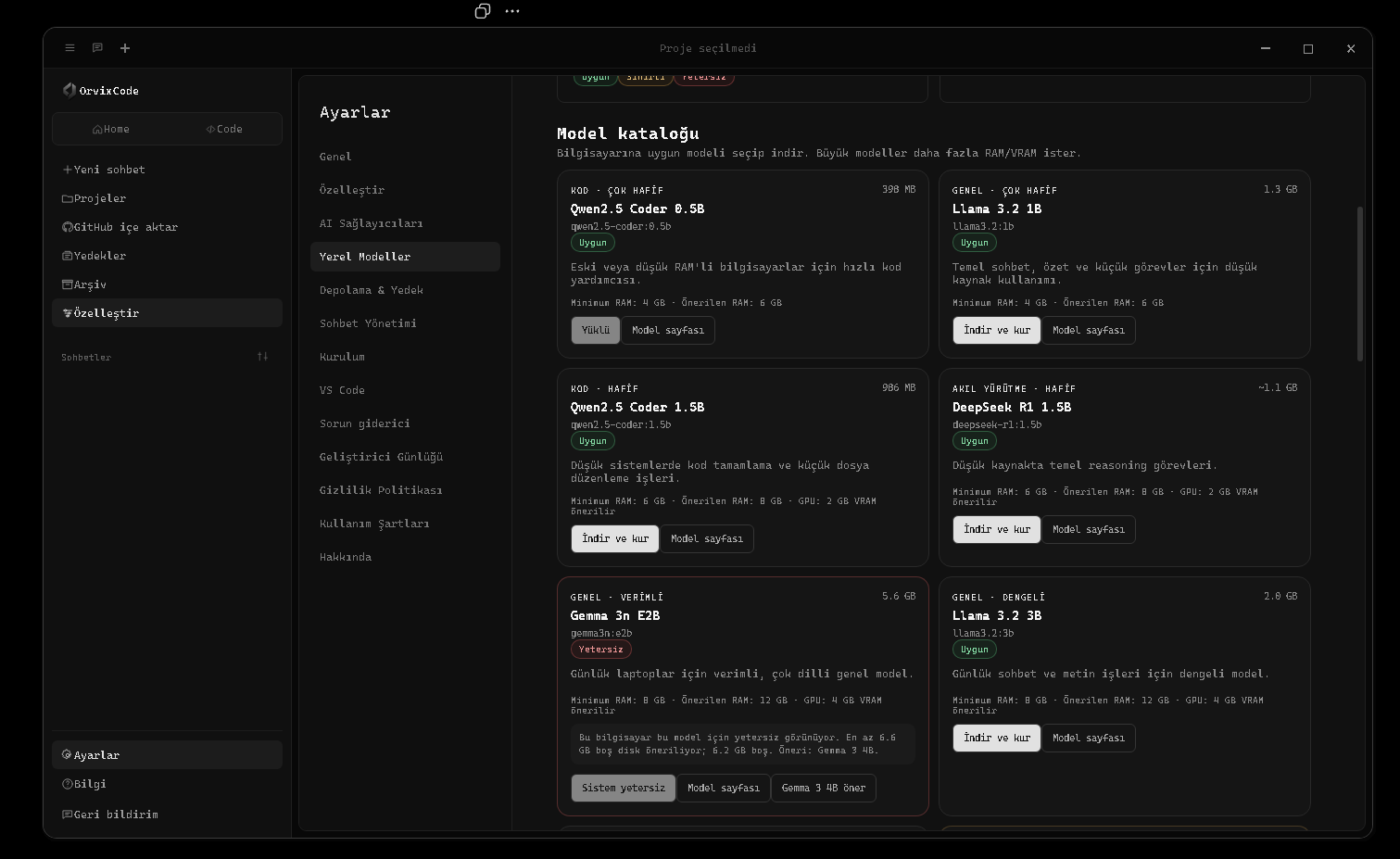
OrvixCode can run supported models locally through Ollama. Local model requests are sent to the Ollama service on your computer and do not require a separate cloud AI API key.
Installed models can appear under Local / Ollama in the model selector and can be used in compatible Ask, Edit, Agent, and Combo workflows.
Third-party licensesLocal models are published by their respective providers. Review each model's current license and usage terms before deployment.
Choosing a model
Use smaller coding models for limited-memory systems and larger models when you need more reasoning capacity and your hardware can support the memory requirements.
What you will learn 01Viona · النماذج المحلية
What you will learn 02Local AI · مختبر عملي
What you will learn 03التقدم · Diff · Test · Review
مختبر عملي
Use the lesson in a real OrvixCode workspace instead of only reading it.
1Open a small real project and identify where this lesson applies.
2Ask OrvixCode to explain the current state before making changes.
3Apply one controlled change and verify it with the project’s real checks.
Apply the “النماذج المحلية” concept to this project. Inspect and explain the current state first. Do not touch unrelated files. Make the smallest safe change, run the relevant build/test/terminal verification, and summarize the real result.
21 إعداد Ollama والنماذج المحليةإعداد Ollama والنماذج المحلية — معلومات تقنية عن الاستخدام والإعداد وتدفقات العمل في OrvixCode.
إعداد Ollama والنماذج المحلية — معلومات تقنية عن الاستخدام والإعداد وتدفقات العمل في OrvixCode.
The local model center is available under Settings → Local Models. It manages the Ollama runtime, hardware checks, free disk space, installed models, and troubleshooting tools.
- Open Local ModelsCheck whether the Ollama runtime is available.
- Prepare OllamaIf it is not installed, use the supported setup flow and verify the local service.
- Check compatibilityReview RAM, VRAM, and free-disk recommendations before downloading.
- Download a modelUse pause, resume, or cancel controls while the model is being downloaded.
- Select the modelAfter installation it should appear in the main model selector.
Local model tools
- Start the Ollama service
- Retry GPU mode after a safe CPU fallback
- Open runtime logs
- Open the model storage folder
- Run compatibility checks
What you will learn 01Viona · إعداد Ollama والنماذج المحلية
What you will learn 02Local AI · مختبر عملي
What you will learn 03التقدم · Diff · Test · Review
مختبر عملي
Use the lesson in a real OrvixCode workspace instead of only reading it.
1Open a small real project and identify where this lesson applies.
2Ask OrvixCode to explain the current state before making changes.
3Apply one controlled change and verify it with the project’s real checks.
Apply the “إعداد Ollama والنماذج المحلية” concept to this project. Inspect and explain the current state first. Do not touch unrelated files. Make the smallest safe change, run the relevant build/test/terminal verification, and summarize the real result.
22 موفرو الذكاء الاصطناعيموفرو الذكاء الاصطناعي — معلومات تقنية عن الاستخدام والإعداد وتدفقات العمل في OrvixCode.
موفرو الذكاء الاصطناعي — معلومات تقنية عن الاستخدام والإعداد وتدفقات العمل في OrvixCode.
OrvixCode can centralize Viona and supported external AI providers in one provider screen. The model list can be refreshed based on the models available to your account or API access.
| Provider | Typical use |
|---|---|
| Viona | Primary OrvixCode model workflow |
| OpenAI / ChatGPT | GPT and coding-capable models |
| Google Gemini | Gemini models |
| Anthropic / Claude | Claude models |
| Groq, Mistral, DeepSeek, xAI and others | Additional cloud model options where configured |
| Microsoft Copilot | Supported Microsoft integration when account access is available |
Provider availabilityExact model names, preview status, and account requirements can change independently of the OrvixCode UI.
What you will learn 01Viona · موفرو الذكاء الاصطناعي
What you will learn 02Local AI · مختبر عملي
What you will learn 03التقدم · Diff · Test · Review
مختبر عملي
Use the lesson in a real OrvixCode workspace instead of only reading it.
1Open a small real project and identify where this lesson applies.
2Ask OrvixCode to explain the current state before making changes.
3Apply one controlled change and verify it with the project’s real checks.
Apply the “موفرو الذكاء الاصطناعي” concept to this project. Inspect and explain the current state first. Do not touch unrelated files. Make the smallest safe change, run the relevant build/test/terminal verification, and summarize the real result.
23 وضع Comboوضع Combo — معلومات تقنية عن الاستخدام والإعداد وتدفقات العمل في OrvixCode.
وضع Combo — معلومات تقنية عن الاستخدام والإعداد وتدفقات العمل في OrvixCode.
Combo mode lets you assign different models to different stages of a coding task. For example, one model can plan, another can write code, and a third can review the result.
1. PlanAnalyze the request and project context.
2. BuildGenerate the implementation.
3. ReviewCheck for mistakes and regressions.
4. DeliverPrepare the final answer or edit package.
Mix local and cloudCompatible local Ollama models and cloud providers can be assigned to different roles when enabled.
Default stateCombo Mode is off by default. Toggle it from the + quick menu in the message composer.
What you will learn 01Viona · وضع Combo
What you will learn 02Local AI · مختبر عملي
What you will learn 03التقدم · Diff · Test · Review
مختبر عملي
Use the lesson in a real OrvixCode workspace instead of only reading it.
1Open a small real project and identify where this lesson applies.
2Ask OrvixCode to explain the current state before making changes.
3Apply one controlled change and verify it with the project’s real checks.
Apply the “وضع Combo” concept to this project. Inspect and explain the current state first. Do not touch unrelated files. Make the smallest safe change, run the relevant build/test/terminal verification, and summarize the real result.
24 السياق التكيفي الذكيالسياق التكيفي الذكي — معلومات تقنية عن الاستخدام والإعداد وتدفقات العمل في OrvixCode.
السياق التكيفي الذكي — معلومات تقنية عن الاستخدام والإعداد وتدفقات العمل في OrvixCode.
OrvixCode prepares context according to the task instead of sending every project file on every request. Selected code, the active file, relevant project files, and chat history can be prioritized differently.
Adaptive context
When a request is too large for a model or local memory budget, OrvixCode can reduce context and retry with a smaller working set.
Selected code winsFor very large files, selecting the exact region you want to discuss gives the context system a strong signal about what should be prioritized.
What you will learn 01Viona · السياق التكيفي الذكي
What you will learn 02Local AI · مختبر عملي
What you will learn 03التقدم · Diff · Test · Review
مختبر عملي
Use the lesson in a real OrvixCode workspace instead of only reading it.
1Open a small real project and identify where this lesson applies.
2Ask OrvixCode to explain the current state before making changes.
3Apply one controlled change and verify it with the project’s real checks.
Apply the “السياق التكيفي الذكي” concept to this project. Inspect and explain the current state first. Do not touch unrelated files. Make the smallest safe change, run the relevant build/test/terminal verification, and summarize the real result.
25 الشفرة الطويلة والمشاريع الكبيرةالشفرة الطويلة والمشاريع الكبيرة — معلومات تقنية عن الاستخدام والإعداد وتدفقات العمل في OrvixCode.
الشفرة الطويلة والمشاريع الكبيرة — معلومات تقنية عن الاستخدام والإعداد وتدفقات العمل في OrvixCode.
OrvixCode detects requests that clearly require large output even when the prompt is short. This is not limited to Python; long-code tasks are supported across HTML/CSS/JavaScript/TypeScript, Go, Rust, PHP, Ruby, Java/Kotlin, C/C++/C#, Swift, Dart, Lua, Scala, Elixir, F#, Solidity, Bash, PowerShell, SQL, and more.
Long output and continuation
- Local models can use a larger output budget when appropriate.
- If a response is cut by a token/context limit, OrvixCode can request continuation from the missing point.
- Repeated overlap is cleaned when continuation chunks are merged.
- Content from an unfinished fenced code block can still be preserved as code.
Large-project planning
- The request is analyzed and a project structure is planned.
- A manifest/file plan is created.
- Files are generated while dependencies and contracts are tracked.
- If imports reveal a missing local module, the plan can be expanded.
- Generation continues when output limits are reached.
- Basic consistency checks run at the end.
Chat stays visibleGenerated code remains in chat; OrvixCode does not automatically switch to the Code page when generation finishes. Use Open in Code manually when you want to move it into the editor.
Model capacityOrvixCode manages planning and continuation, but code quality and usable context still depend on the selected model and hardware.
What you will learn 01Viona · الشفرة الطويلة والمشاريع الكبيرة
What you will learn 02Local AI · مختبر عملي
What you will learn 03التقدم · Diff · Test · Review
مختبر عملي
Use the lesson in a real OrvixCode workspace instead of only reading it.
1Open a small real project and identify where this lesson applies.
2Ask OrvixCode to explain the current state before making changes.
3Apply one controlled change and verify it with the project’s real checks.
Apply the “الشفرة الطويلة والمشاريع الكبيرة” concept to this project. Inspect and explain the current state first. Do not touch unrelated files. Make the smallest safe change, run the relevant build/test/terminal verification, and summarize the real result.
Track checkpoint · 04 · Models & Context
Before moving on, complete these tasks without relying on guesswork.
- Explain the key ideas of this path in your own words.
- Complete one real task using the workflow from this path.
- Verify your result with evidence such as a diff, test, build or terminal output.
Level · متقدم
05 · Project Productivity
Work with GitHub, backups, sessions, settings and keyboard workflows on real repositories.
GitHubBackupSessionsWorkflow
26 تكامل GitHubتكامل GitHub — معلومات تقنية عن الاستخدام والإعداد وتدفقات العمل في OrvixCode.
تكامل GitHub — معلومات تقنية عن الاستخدام والإعداد وتدفقات العمل في OrvixCode.
Use the GitHub import flow to bring a repository into a local OrvixCode workspace. After the clone/import completes, the project behaves like a normal local folder and can participate in AI context.
What you will learn 01GitHub · تكامل GitHub
What you will learn 02Backup · مختبر عملي
What you will learn 03التقدم · Diff · Test · Review
مختبر عملي
Use the lesson in a real OrvixCode workspace instead of only reading it.
1Open a small real project and identify where this lesson applies.
2Ask OrvixCode to explain the current state before making changes.
3Apply one controlled change and verify it with the project’s real checks.
Apply the “تكامل GitHub” concept to this project. Inspect and explain the current state first. Do not touch unrelated files. Make the smallest safe change, run the relevant build/test/terminal verification, and summarize the real result.
27 النسخ الاحتياطيةالنسخ الاحتياطية — معلومات تقنية عن الاستخدام والإعداد وتدفقات العمل في OrvixCode.
النسخ الاحتياطية — معلومات تقنية عن الاستخدام والإعداد وتدفقات العمل في OrvixCode.
OrvixCode can keep backup information around file edits to reduce the risk of data loss. Depending on the edit workflow, earlier content can be retained so changes can be reviewed or reverted.
The VS Code integration also provides an undo flow for supported recent AI changes.
What you will learn 01GitHub · النسخ الاحتياطية
What you will learn 02Backup · مختبر عملي
What you will learn 03التقدم · Diff · Test · Review
مختبر عملي
Use the lesson in a real OrvixCode workspace instead of only reading it.
1Open a small real project and identify where this lesson applies.
2Ask OrvixCode to explain the current state before making changes.
3Apply one controlled change and verify it with the project’s real checks.
Apply the “النسخ الاحتياطية” concept to this project. Inspect and explain the current state first. Do not touch unrelated files. Make the smallest safe change, run the relevant build/test/terminal verification, and summarize the real result.
28 المحادثات والجلساتالمحادثات والجلسات — معلومات تقنية عن الاستخدام والإعداد وتدفقات العمل في OrvixCode.
المحادثات والجلسات — معلومات تقنية عن الاستخدام والإعداد وتدفقات العمل في OrvixCode.
Open tabs and saved chats are separate concepts. Closing a tab does not have to delete its conversation history.
- Reopen saved chats from the navigation area.
- Delete chats from the relevant management controls.
- Keep multiple chat tabs open at once.
- Synced VS Code sessions can appear under their own titles.
What you will learn 01GitHub · المحادثات والجلسات
What you will learn 02Backup · مختبر عملي
What you will learn 03التقدم · Diff · Test · Review
مختبر عملي
Use the lesson in a real OrvixCode workspace instead of only reading it.
1Open a small real project and identify where this lesson applies.
2Ask OrvixCode to explain the current state before making changes.
3Apply one controlled change and verify it with the project’s real checks.
Apply the “المحادثات والجلسات” concept to this project. Inspect and explain the current state first. Do not touch unrelated files. Make the smallest safe change, run the relevant build/test/terminal verification, and summarize the real result.
29 الإعداداتالإعدادات — معلومات تقنية عن الاستخدام والإعداد وتدفقات العمل في OrvixCode.
الإعدادات — معلومات تقنية عن الاستخدام والإعداد وتدفقات العمل في OrvixCode.
The settings area groups the main OrvixCode preferences:
- General: default model, creativity, writing animation, sounds, navigation, and language.
- Customize: theme, font family, and text appearance.
- AI Providers: provider connections, model refresh, and Combo configuration.
- Local Models: Ollama service, compatibility, downloads, and logs.
- Storage & Backup: data location and automatic file backup behavior.
- Chat Management: review and remove stored conversations.
- Setup / VS Code: desktop and extension integration options.
- Troubleshooter: local system and connection checks.
- Keyboard Shortcuts: Rebind actions such as send, new chat/project, save, undo/redo, run, terminal, stop AI response, Combo, and main navigation.
What you will learn 01GitHub · الإعدادات
What you will learn 02Backup · مختبر عملي
What you will learn 03التقدم · Diff · Test · Review
مختبر عملي
Use the lesson in a real OrvixCode workspace instead of only reading it.
1Open a small real project and identify where this lesson applies.
2Ask OrvixCode to explain the current state before making changes.
3Apply one controlled change and verify it with the project’s real checks.
Apply the “الإعدادات” concept to this project. Inspect and explain the current state first. Do not touch unrelated files. Make the smallest safe change, run the relevant build/test/terminal verification, and summarize the real result.
30 اختصارات لوحة المفاتيحاختصارات لوحة المفاتيح — معلومات تقنية عن الاستخدام والإعداد وتدفقات العمل في OrvixCode.
اختصارات لوحة المفاتيح — معلومات تقنية عن الاستخدام والإعداد وتدفقات العمل في OrvixCode.
Open Settings → Keyboard Shortcuts to rebind major application actions. Selecting an action opens a key-capture dialog for the new combination.
Examples of configurable actions
- Send message / new line
- Focus the message box
- New chat and new project
- Attach file and save
- Ctrl+Z undo / Ctrl+Y redo
- Run code and open terminal
- Stop AI response
- Toggle Combo Mode
- Docs, feedback, and main navigation
- Minimize, maximize, close, or send the app to background/tray
ConflictsIf a combination is already assigned to another action, OrvixCode detects the conflict and warns you.
What you will learn 01GitHub · اختصارات لوحة المفاتيح
What you will learn 02Backup · مختبر عملي
What you will learn 03التقدم · Diff · Test · Review
مختبر عملي
Use the lesson in a real OrvixCode workspace instead of only reading it.
1Open a small real project and identify where this lesson applies.
2Ask OrvixCode to explain the current state before making changes.
3Apply one controlled change and verify it with the project’s real checks.
Apply the “اختصارات لوحة المفاتيح” concept to this project. Inspect and explain the current state first. Do not touch unrelated files. Make the smallest safe change, run the relevant build/test/terminal verification, and summarize the real result.
Track checkpoint · 05 · Project Productivity
Before moving on, complete these tasks without relying on guesswork.
- Explain the key ideas of this path in your own words.
- Complete one real task using the workflow from this path.
- Verify your result with evidence such as a diff, test, build or terminal output.
Level · خبير
06 · Security & Control
Protect API keys, permissions and repository boundaries while keeping AI productive.
SecuritySecretsPermissions
31 السمة والخط والمظهرالسمة والخط والمظهر — معلومات تقنية عن الاستخدام والإعداد وتدفقات العمل في OrvixCode.
السمة والخط والمظهر — معلومات تقنية عن الاستخدام والإعداد وتدفقات العمل في OrvixCode.
Open Settings → Customize to change OrvixCode's visual appearance.
| Setting | Examples |
|---|---|
| Theme | Orvix Dark, Light, Midnight, Graphite, Forest, and other supported themes |
| Font | Inter, Segoe UI, Arial, Georgia, Cascadia Code |
| Text color | Customize interface text using the available color control |
| Reset | Restore OrvixCode appearance defaults |
Appearance onlyChanging theme or font does not change your AI providers, projects, or chat configuration.
What you will learn 01Security · السمة والخط والمظهر
What you will learn 02Secrets · مختبر عملي
What you will learn 03التقدم · Diff · Test · Review
مختبر عملي
Use the lesson in a real OrvixCode workspace instead of only reading it.
1Open a small real project and identify where this lesson applies.
2Ask OrvixCode to explain the current state before making changes.
3Apply one controlled change and verify it with the project’s real checks.
Apply the “السمة والخط والمظهر” concept to this project. Inspect and explain the current state first. Do not touch unrelated files. Make the smallest safe change, run the relevant build/test/terminal verification, and summarize the real result.
32 سلامة الملفاتسلامة الملفات — معلومات تقنية عن الاستخدام والإعداد وتدفقات العمل في OrvixCode.
سلامة الملفات — معلومات تقنية عن الاستخدام والإعداد وتدفقات العمل في OrvixCode.
OrvixCode aims to keep AI-driven file operations visible and reviewable. The edited file and change state can be shown in the chat or edit report.
When automatic apply is disabled, a prepared edit can wait for user approval before being written.
What you will learn 01Security · سلامة الملفات
What you will learn 02Secrets · مختبر عملي
What you will learn 03التقدم · Diff · Test · Review
مختبر عملي
Use the lesson in a real OrvixCode workspace instead of only reading it.
1Open a small real project and identify where this lesson applies.
2Ask OrvixCode to explain the current state before making changes.
3Apply one controlled change and verify it with the project’s real checks.
Apply the “سلامة الملفات” concept to this project. Inspect and explain the current state first. Do not touch unrelated files. Make the smallest safe change, run the relevant build/test/terminal verification, and summarize the real result.
33 مفاتيح APIمفاتيح API — معلومات تقنية عن الاستخدام والإعداد وتدفقات العمل في OrvixCode.
مفاتيح API — معلومات تقنية عن الاستخدام والإعداد وتدفقات العمل في OrvixCode.
External AI providers require the credentials issued by the relevant service.
Do not expose API keysNever place API keys in source code, public repositories, screenshots, or public web pages.
The VS Code extension is designed to use the provider configuration exposed through OrvixCode's connection layer rather than asking you to copy secrets into every editor workflow.
What you will learn 01Security · مفاتيح API
What you will learn 02Secrets · مختبر عملي
What you will learn 03التقدم · Diff · Test · Review
مختبر عملي
Use the lesson in a real OrvixCode workspace instead of only reading it.
1Open a small real project and identify where this lesson applies.
2Ask OrvixCode to explain the current state before making changes.
3Apply one controlled change and verify it with the project’s real checks.
Apply the “مفاتيح API” concept to this project. Inspect and explain the current state first. Do not touch unrelated files. Make the smallest safe change, run the relevant build/test/terminal verification, and summarize the real result.
34 أذونات الملفاتأذونات الملفات — معلومات تقنية عن الاستخدام والإعداد وتدفقات العمل في OrvixCode.
أذونات الملفات — معلومات تقنية عن الاستخدام والإعداد وتدفقات العمل في OrvixCode.
Multi-file tasks can have a wider change scope than a single-file edit. Depending on your version and settings, OrvixCode can request permission for one file or for a broader proposed change.
Agent permissionsBefore approving a multi-file operation, review the task scope and the files that are expected to change.
What you will learn 01Security · أذونات الملفات
What you will learn 02Secrets · مختبر عملي
What you will learn 03التقدم · Diff · Test · Review
مختبر عملي
Use the lesson in a real OrvixCode workspace instead of only reading it.
1Open a small real project and identify where this lesson applies.
2Ask OrvixCode to explain the current state before making changes.
3Apply one controlled change and verify it with the project’s real checks.
Apply the “أذونات الملفات” concept to this project. Inspect and explain the current state first. Do not touch unrelated files. Make the smallest safe change, run the relevant build/test/terminal verification, and summarize the real result.
Track checkpoint · 06 · Security & Control
Before moving on, complete these tasks without relying on guesswork.
- Explain the key ideas of this path in your own words.
- Complete one real task using the workflow from this path.
- Verify your result with evidence such as a diff, test, build or terminal output.
Level · خبير
07 · Troubleshooting
Diagnose provider, VS Code, local-model and application failures using evidence instead of guesses.
DebuggingRecoveryDiagnostics
35 استكشاف الأخطاء العامةاستكشاف الأخطاء العامة — معلومات تقنية عن الاستخدام والإعداد وتدفقات العمل في OrvixCode.
استكشاف الأخطاء العامة — معلومات تقنية عن الاستخدام والإعداد وتدفقات العمل في OrvixCode.
AI is not responding
- Confirm that an active model is selected and available.
- For cloud models, verify provider credentials and internet access.
- For local models, confirm that the Ollama service is running.
- In VS Code, use the connection test and review any error details.
File changes are not applying
- Check the edit package state.
- If Auto Apply is enabled, the change may already be applied.
- Verify write permissions and VS Code Workspace Trust.
- Review the diff and retry the edit if needed.
What you will learn 01Debugging · استكشاف الأخطاء العامة
What you will learn 02Recovery · مختبر عملي
What you will learn 03التقدم · Diff · Test · Review
مختبر عملي
Use the lesson in a real OrvixCode workspace instead of only reading it.
1Open a small real project and identify where this lesson applies.
2Ask OrvixCode to explain the current state before making changes.
3Apply one controlled change and verify it with the project’s real checks.
Apply the “استكشاف الأخطاء العامة” concept to this project. Inspect and explain the current state first. Do not touch unrelated files. Make the smallest safe change, run the relevant build/test/terminal verification, and summarize the real result.
36 تجاوز حد حجم طلب Vionaتجاوز حد حجم طلب Viona — معلومات تقنية عن الاستخدام والإعداد وتدفقات العمل في OrvixCode.
تجاوز حد حجم طلب Viona — معلومات تقنية عن الاستخدام والإعداد وتدفقات العمل في OrvixCode.
This error can appear when the active file, project context, and chat history together exceed the model request limit.
OrvixCode can reduce the context size and retry with a smaller context profile after an oversized request.
Best resultIn very large files, select the exact code region you want to change. Selected code receives higher context priority.
What you will learn 01Debugging · تجاوز حد حجم طلب Viona
What you will learn 02Recovery · مختبر عملي
What you will learn 03التقدم · Diff · Test · Review
مختبر عملي
Use the lesson in a real OrvixCode workspace instead of only reading it.
1Open a small real project and identify where this lesson applies.
2Ask OrvixCode to explain the current state before making changes.
3Apply one controlled change and verify it with the project’s real checks.
Apply the “تجاوز حد حجم طلب Viona” concept to this project. Inspect and explain the current state first. Do not touch unrelated files. Make the smallest safe change, run the relevant build/test/terminal verification, and summarize the real result.
37 استكشاف أخطاء VS Codeاستكشاف أخطاء VS Code — معلومات تقنية عن الاستخدام والإعداد وتدفقات العمل في OrvixCode.
استكشاف أخطاء VS Code — معلومات تقنية عن الاستخدام والإعداد وتدفقات العمل في OrvixCode.
Extension is missing from search
Refresh the Extensions view, verify internet access, and search for OrvixCode again. Newly published updates can take time to propagate.
Workspace is not trusted
File-editing features may be restricted until the workspace is trusted in VS Code.
Panel opens but AI does not respond
Run the connection test, then check cloud-provider access or the local OrvixCode/Ollama status.
Simple chat includes irrelevant project context
Update the extension and reload VS Code. Current builds are designed to isolate simple greetings from project context.
Context-menu command does not start
Confirm that code is selected, retry the command, and use a new OrvixCode chat if the issue persists.
What you will learn 01Debugging · استكشاف أخطاء VS Code
What you will learn 02Recovery · مختبر عملي
What you will learn 03التقدم · Diff · Test · Review
مختبر عملي
Use the lesson in a real OrvixCode workspace instead of only reading it.
1Open a small real project and identify where this lesson applies.
2Ask OrvixCode to explain the current state before making changes.
3Apply one controlled change and verify it with the project’s real checks.
Apply the “استكشاف أخطاء VS Code” concept to this project. Inspect and explain the current state first. Do not touch unrelated files. Make the smallest safe change, run the relevant build/test/terminal verification, and summarize the real result.
38 استكشاف أخطاء النماذج المحليةاستكشاف أخطاء النماذج المحلية — معلومات تقنية عن الاستخدام والإعداد وتدفقات العمل في OrvixCode.
استكشاف أخطاء النماذج المحلية — معلومات تقنية عن الاستخدام والإعداد وتدفقات العمل في OrvixCode.
Ollama is not running
Open Settings → Local Models, check the runtime state, and use the service start control. Review logs if startup continues to fail.
“failed to allocate buffer / kv cache”
The selected model or context length may be too large for available RAM/VRAM. OrvixCode can retry with smaller context levels.
8192 → 6144 → 4096 → 3072 → 2048
CUDA / GPU error
A safe CPU fallback can keep the model usable. You can retry GPU mode later from the local model controls.
Local model is too slow
Try a smaller model, close memory-heavy applications, and confirm that compatible GPU acceleration is active.
What you will learn 01Debugging · استكشاف أخطاء النماذج المحلية
What you will learn 02Recovery · مختبر عملي
What you will learn 03التقدم · Diff · Test · Review
مختبر عملي
Use the lesson in a real OrvixCode workspace instead of only reading it.
1Open a small real project and identify where this lesson applies.
2Ask OrvixCode to explain the current state before making changes.
3Apply one controlled change and verify it with the project’s real checks.
Apply the “استكشاف أخطاء النماذج المحلية” concept to this project. Inspect and explain the current state first. Do not touch unrelated files. Make the smallest safe change, run the relevant build/test/terminal verification, and summarize the real result.
39 الأسئلة الشائعةالأسئلة الشائعة — معلومات تقنية عن الاستخدام والإعداد وتدفقات العمل في OrvixCode.
الأسئلة الشائعة — معلومات تقنية عن الاستخدام والإعداد وتدفقات العمل في OrvixCode.
Yes, selected features can work offline when you use a previously downloaded local Ollama model. Cloud providers and new model downloads still need internet access.
No. OrvixCode has its own desktop interface; the VS Code extension is optional.
Yes. A clear change request can produce an applicable edit package.
Agent mode is designed for tasks that span several files.
No. Models running through local Ollama do not require a separate cloud AI API key.
Yes. Long-output requests can use larger output budgets and continuation handling when the selected model supports it.
This package was updated on September 1, 2026 for the OrvixCode 1.2.0 feature set.
What you will learn 01Debugging · الأسئلة الشائعة
What you will learn 02Recovery · مختبر عملي
What you will learn 03التقدم · Diff · Test · Review
مختبر عملي
Use the lesson in a real OrvixCode workspace instead of only reading it.
1Open a small real project and identify where this lesson applies.
2Ask OrvixCode to explain the current state before making changes.
3Apply one controlled change and verify it with the project’s real checks.
Apply the “الأسئلة الشائعة” concept to this project. Inspect and explain the current state first. Do not touch unrelated files. Make the smallest safe change, run the relevant build/test/terminal verification, and summarize the real result.
Track checkpoint · 07 · Troubleshooting
Before moving on, complete these tasks without relying on guesswork.
- Explain the key ideas of this path in your own words.
- Complete one real task using the workflow from this path.
- Verify your result with evidence such as a diff, test, build or terminal output.
Level · متقدم
08 · Platform & Release Operations
Understand Learn, service status, releases and how the OrvixCode platform communicates changes.
LearnStatusReleases
40 مركز تعلم OrvixCodeتعلّم Ask وEdit وAgent وسياق المشروع والطرفية والنماذج المحلية وسير العمل الآمن عبر OrvixCode Learn.
تعلّم Ask وEdit وAgent وسياق المشروع والطرفية والنماذج المحلية وسير العمل الآمن عبر OrvixCode Learn.
يكمل OrvixCode Learn وثائق المرجع بدروس عملية خطوة بخطوة قابلة للقراءة والتطبيق مباشرة.
OrvixCode Learnفتح OrvixCode Learn →
What you will learn 01Learn · مركز تعلم OrvixCode
What you will learn 02Status · مختبر عملي
What you will learn 03التقدم · Diff · Test · Review
مختبر عملي
Use the lesson in a real OrvixCode workspace instead of only reading it.
1Open a small real project and identify where this lesson applies.
2Ask OrvixCode to explain the current state before making changes.
3Apply one controlled change and verify it with the project’s real checks.
Apply the “مركز تعلم OrvixCode” concept to this project. Inspect and explain the current state first. Do not touch unrelated files. Make the smallest safe change, run the relevant build/test/terminal verification, and summarize the real result.
41 الإعلانات وحالة الخدمةتابع الحالة المباشرة لخدمات OrvixCode والصيانة والتحديثات والتنبيهات العاجلة.
تابع الحالة المباشرة لخدمات OrvixCode والصيانة والتحديثات والتنبيهات العاجلة.
تعرض صفحة الحالة الرسمية حالة الموقع والوثائق والتنزيلات وخدمات الذكاء الاصطناعي. تظهر إعلانات الإدارة فورًا في الصفحة العامة والخلاصات القابلة للقراءة آليًا.
What you will learn 01Learn · الإعلانات وحالة الخدمة
What you will learn 02Status · مختبر عملي
What you will learn 03التقدم · Diff · Test · Review
مختبر عملي
Use the lesson in a real OrvixCode workspace instead of only reading it.
1Open a small real project and identify where this lesson applies.
2Ask OrvixCode to explain the current state before making changes.
3Apply one controlled change and verify it with the project’s real checks.
Apply the “الإعلانات وحالة الخدمة” concept to this project. Inspect and explain the current state first. Do not touch unrelated files. Make the smallest safe change, run the relevant build/test/terminal verification, and summarize the real result.
42 الإصدار والتنزيل الحاليثبّت أحدث إصدار مستقر من OrvixCode عبر Microsoft Store.
ثبّت أحدث إصدار مستقر من OrvixCode عبر Microsoft Store.
تستخدم روابط التنزيل إعداد إصدار مركزي. عند نشر إصدار مستقر جديد يتم تحديث رقم الإصدار ووجهة التنزيل عبر المنصة.
https://orvixcode.orvixgames.com/download.php?lang=ar
What you will learn 01Learn · الإصدار والتنزيل الحالي
What you will learn 02Status · مختبر عملي
What you will learn 03التقدم · Diff · Test · Review
مختبر عملي
Use the lesson in a real OrvixCode workspace instead of only reading it.
1Open a small real project and identify where this lesson applies.
2Ask OrvixCode to explain the current state before making changes.
3Apply one controlled change and verify it with the project’s real checks.
Apply the “الإصدار والتنزيل الحالي” concept to this project. Inspect and explain the current state first. Do not touch unrelated files. Make the smallest safe change, run the relevant build/test/terminal verification, and summarize the real result.
Track checkpoint · 08 · Platform & Release Operations
Before moving on, complete these tasks without relying on guesswork.
- Explain the key ideas of this path in your own words.
- Complete one real task using the workflow from this path.
- Verify your result with evidence such as a diff, test, build or terminal output.
CAPSTONE
مشاريع التخرج
Finish the academy with larger projects that combine multiple OrvixCode skills.
Project 1
Build a real product from zero
Objective: Use OrvixCode Agent to build a small real web product and finish it with a verification loop.
- Turn requirements into a plan first.
- Implement at least three user-facing features.
- Verify responsive behavior.
- Run build/tests or browser-console checks.
- Report the final diff and changed files.
Project 2
Bug hunt in an existing repository
Objective: Enter an unfamiliar project, reproduce a bug, make the smallest safe fix and add regression coverage.
- Analyze repository structure first.
- Record a reproducible failure.
- Explain root cause before editing.
- Apply a minimal patch.
- Run the same verification again.
Project 3
Local model and provider resilience
Objective: Exercise local-model, provider fallback and Agent recovery paths with real failure scenarios.
- Create an empty-response scenario.
- Observe provider timeout and fallback.
- Check tool-call compatibility.
- Collect evidence from developer logs.
- Do not accept silent failure.
Project 4
Large-repo refactor and security review
Objective: Plan and execute a multi-file refactor, verify it, then run a separate security and permission review.
- Map affected files first.
- Write down public behavior constraints.
- Work in small patches.
- Run tests/build/typecheck.
- Review secrets, permissions and unrelated file changes.
ORVIXCODE ACADEMY · CERTIFICATE
شهادة إكمال
Complete every lesson to unlock a printable completion certificate.

ORVIXCODEOrvixCode Academy
إتمام الأكاديمية
ORVIXCODE
ACADEMY
COMPLETION
ACADEMY
COMPLETION
ORVIXCODE ACADEMY
شهادة إتمام
تُمنح هذه الشهادة بكل فخر إلى
—
لإتمام منهج أكاديمية OrvixCode بالكامل بنجاح وإظهار كفاءة عملية في تطوير البرمجيات بمساعدة الذكاء الاصطناعي.
42الدروس المكتملة
8مسارات التعلم
14+وقت الدراسة التقديري · ساعة
OrvixCode
Orvix Games AI Studio
Academy & Platform
Issued by OrvixCode Academy · orvixcode.orvixgames.com